 DOBIERO
The widget shows DOBIERO’s current suggestions on your phone’s home screen. You can add it from the app or by hand, like any other widget. This guide is about Android; the DOBIERO iPhone app is not available yet.
What does the DOBIERO widget show?
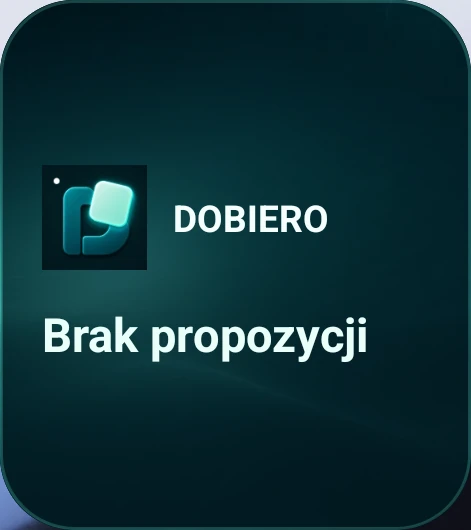
The widget shows the current suggestions from DOBIERO’s Home screen, or “Brak propozycji” (no suggestions) when there are none. The number of items depends on the widget’s size: from one in a small widget to at most twelve in a large one. “+N” shows how many suggestions did not fit.
When the widget shows suggestions, tapping its background or “+N” opens DOBIERO’s full Home screen. Another app or a store opens only after you tap a specific item, and DOBIERO first checks that the suggestion is still current. The widget installs nothing.
The widget stores only limited data about the current suggestion, without coordinates. On Android, DOBIERO offers it for the home screen, not the lock screen.
How do I add the widget from DOBIERO?
From Android 8.0, an app can ask the launcher, meaning the home screen app, to add its widget. According to the Android documentation, the launcher decides whether to accept the request and may ask you to confirm. Some launchers do not support such requests.
- Open DOBIERO and tap the settings icon in the top right corner.
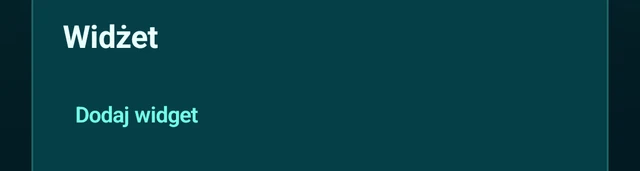
- In the “Widżet” (widget) section, tap “Dodaj widget” (add widget).
- Confirm the request to add the widget. What it looks like depends on your launcher.
- If your launcher lets you choose a spot, place the widget on the home screen and lift your finger.
What will I see after tapping “Dodaj widget”?
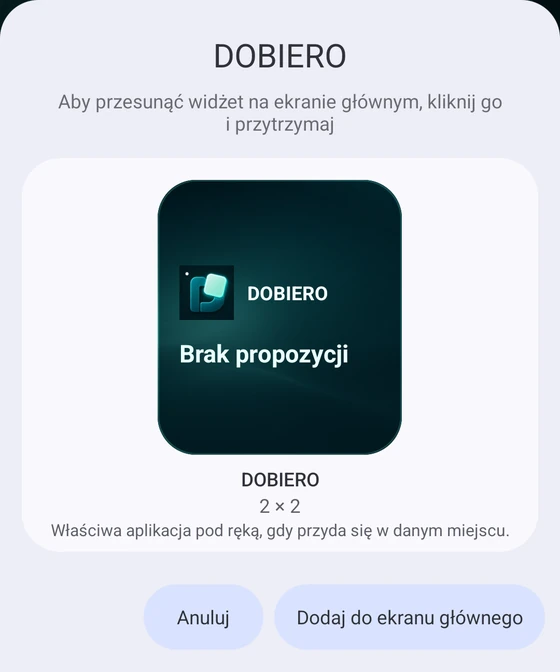
On an emulator with the Pixel launcher, Android shows a window with a preview of the DOBIERO widget and the buttons “Anuluj” (cancel) and “Dodaj do ekranu głównego” (add to home screen). On your phone the window may look different.
If your launcher does not support such requests, the “Widżet” section shows a message about the launcher instead of the “Dodaj widget” button. If the launcher does not accept the request, DOBIERO shows a short message that the launcher does not support it. If you cancel in the launcher’s window, DOBIERO shows nothing. In each case, add the widget by hand with the steps below.
How do I add the widget from the home screen?
These steps come from Google’s Android help. Google notes that some of them work only on Android 14 or newer. Names and menus may differ between phone makers.
- On a home screen, touch and hold an empty spot.
- Tap Widgets.
- Find DOBIERO in the list and tap it to see its widgets.
- Touch and hold a widget. Pictures of your home screens appear.
- Slide the widget where you want it and lift your finger.
A shortcut and limits
- Google’s help also gives a shortcut: touch and hold the app icon, then tap Widgets, if the app has widgets.
- You cannot add widgets or shortcuts to the home screen from private space (Pixel help).
Samsung Galaxy phones
Samsung’s pages say: touch and hold an empty spot on the home screen, tap Widgets, choose the DOBIERO widget and tap Add. The Polish-language page dates from 2022 and the English one from 23 May 2026, and Samsung notes that menus depend on the model and software version.
Samsung’s Polish-language page from 2022 also says that removing a widget does not delete the app’s settings, and it describes a switch (“Zablokuj układ ekranu startowego”, lock Home screen layout) that protects widgets from being moved or removed by accident.
How do I resize, move or remove the widget?
The DOBIERO widget can be stretched horizontally and vertically if your launcher allows it. Google’s help describes the actions below.
- Resize: touch and hold the widget, lift your finger, drag the dots on its outline, then tap outside the widget.
- Move: drag the widget to another spot, including to another home screen.
- Remove: touch and hold the widget and drag it to “Remove”. “Remove” only takes the widget off the home screen, while “Uninstall” removes the app from the phone.
Is the widget empty or gone?
- “Brak propozycji” means DOBIERO has no current suggestion right now. DOBIERO may stay quiet, as our guide “Why aren't DOBIERO notifications arriving?” explains.
- The widget changes together with DOBIERO’s Home screen after a good reading, but the phone may delay background work.
- Safe mode removes some widgets from the home screen. After leaving it you can add the widget again.
- “Usuń dane lokalne” (delete local data) in DOBIERO also clears the widget: it stays on your home screen and shows “Brak propozycji”.